A couple of weeks ago, someone on the MTC forum had asked how to take a "digital" image of a cupcake with some text and stars encircling it and "change" the color of the text in a word processing program or some other program. The problem was the file was a png file and it was not "editable" in that format. I had suggested that the user could use "pixel trace" in MTC to pull the image in, break it apart and make it "editable" so she could change colors, etc. I then proceed to do that in MTC to show her. Well, it took a little time and effort to do it (more than I originally thought it would). So, then I decided to see if I could create my own similar file directly in MTC and see if it would take less time then trying to pixel trace and edit the other one. To do the circles of stars and the text in a circle, you use the "wrap object to path" tool in Make the Cut. (I wrapped to a circle sized as needed. Once that is done, you can delete the circle as it is not needed). Time wise, this one may have taken a little less time on the whole but probably not a lot.
However, since this one is a file I created on my own, I figured I would share it here for anyone who might like to make use of it. My vision was that it would be used as a "print and cut" or like a digital stamp image that you printed out as opposed to a "paper piecing." Each part of the image is on its own layer and can thus have its "color" changed easily. Don't want yellow stars, make them purple. Want one row of stars one color and the second row another, you can do that as the two rows of stars are on separate layers. Want the text to be orange, easy to do. Prefer yellow icing on your cupcake, go ahead after all, its your card and your image - give it your own personal touch! The bottom image shows how easily I changed colors in the file.
I'm sharing both a MTC file as well as an SVG file for you to download. These are shared via my public folder in my dropbox account. As always, I would love to see anything that you might create with this file. It would make a great image to use in the middle of the "swinging Z" cards that I created and shared previously here on my blog.
You can download the Sweet Birthday Cucpake MTC file here.
You can download the Sweet Birthday Cucpake SVG file here.
As always, thanks for stopping by.
Welcome!
Welcome to my New Blog. This blog is for sharing my crafting ideas and my cutting files that I create primarily using the Make the Cut Software and my electronic cutters which include my 18" Black Cat Cougar, a Silhouette SD, and an original Expression.
All files and information shared here is for your personal use only. Please contact me if you wish to use any items commercially, for blog contests, or to submit for magazine publication. Thank you.
Showing posts with label Print and Cut. Show all posts
Tuesday, October 16, 2012
Thursday, October 11, 2012
Halloween - Frankenstein Head .svg file to share
Continuing to share old Halloween posts from my old blog. Again, this one is from 2009. It is an .svg file of a Frankenstein head. This one has a new twist with it that wasn't there in the 2009 post.Here on this sample I have added in the "whites" of the eyes with a white pen and drawn in the stitch line on his forehead and his mouth. If you have a 4shared account you can Download the Frankenstein .svg file here. If you don't have a 4shared account (and don't want to create one) I have reloaded the file into my public dropbox account for you to grab it from: download the Dropbox Frankenstein .svg file here.
The new "addition" to this post is this "halloween treat guy" made using this head at this post on the Make the Cut Forum here. That post contains a .mtc file for this head and a couple others:
http://forum.make-the-cut.com/discussion/27540/halloween-pumpkin-guys-treats#latest
That thread on the MTC forum has a MTC file that contains not only this Frankenstein head, but also a Jack-o-lantern Head and a Witch's Head to create these "treats" with. It also contains a link to the blog where the original idea was found which was "Stuff Your Mom Didn't Make".
You will notice in that thread that I have set the files up so that they can be cut out and paper pieced as shown in the picture above from my original post in 2009 or that can be used as a "print and cut" with MTC. Print and Cut was not an available option for us back in 2009! I really like doing "print and cuts", especially for something like this. As always, thanks for stopping by. Would love to see what you create!
Wednesday, June 13, 2012
Stencil Edge Cards - both MTC and SVG files available
Hello. Just wanted to share some new cards that I made in the past few days. They are "stencil edge" cards or in one case, just a stencil card. Several of this style card had been shared on the MTC forum in the past few weeks and some people wanted to have it shown in a MTC Webinar how you would make them. So Bryan showed several ways to do them in a MTC Webinar on 6/5/12. I gather he did a followup on them again last night on the 6/12/12 Webinar (haven't seen that yet. Will review when he gets it posted). During the 6/5/12 Webinar, Bryan had assigned homework for people to create their own versions of these cards and to then share pictures of them on the MTC forum. Pictures of many of the ones people have created have been shared in this thread on the MTC forum: http://forum.make-the-cut.com/discussion/25151/webinar-homework#latest. (There are a few others scattered about in other threads(search the forum for stencil card) but this gets you to the bulk of them).
Julie from MTC_Tuts Yaho group also wrote a tutorial on using MTC to create a card like this. You can find more information about the tutorial and where to find it by checking this thread on the MTC forum: http://forum.make-the-cut.com/discussion/25163/make-a-card-withastencil-edge-design-tutorial#latest
As a result, I decided to give a hand at trying them myself. Some of the ideas I had considered making others had already done and I didn't want to recreate a similar card. So I looked for images that I had not yet seen done. I choose an ice cream cone and a lighthouse. While I was looking for free stencils that would work for this style of card, I ran across a sailboat that I really liked but didn't think was suited for putting on the edge of the card. As a result, I chose to simply put it on the front of the card. The pictures show the sample cards that I cut out to test my files. The ice cream cone also contains a "print and cut" colored ice cream cone that I used behind my "stenciled" emage to add a pop of color to it. This can also be "split" and the pieces used to create a paper piecing of an ice cream cone. All cards have an insert to cut for the inside. I think they would look great using vellum too. Finally, the sailboat card also has a "stitching line" that I used to create a stitched look with a marker on one of my cutters. I think I will use the ice cream cone card either as a birthday or a simple "hello" card. The lighthouse and sailboat may get used for father's day cards for my DH and my FIL. Sadly my father is passed away so I cannot share one of my cards with him! If I don't use them for Father's day they could be used for several other things as well don't you think!
I created my original files in MTC but have exported them out into SVG for use by others with different software. I hope that you like them and would like to see what you do with the file(s).
The files are loaded into my public folder in my dropbox account. You may find it necessary to do a right click and "save as" or "save target as" to save to your computer.
Download the Ice Cream Cone Stencil Edge Card MTC file here.
Download the Ice Cream Cone Stencil Edge Card SVG file here.
Download the Lighthouse Stencil Edge Card MTC file here.
Download the Lighthouse Stencil Edge Card SVG file here.
Download the Sailboat Stencil Card MTC file here.
Download the Sailboat Stencil Card SVG file here.
As always, Thanks for stopping by. Please let me know if you use one of my files to create something. I would love to see a picture or too! I also have a few more things that I have been working on recently that I hope to find time to take photos of and to share soon here on my blog. Some of them will have files to share as well so be sure to pop back in soon!
EDITED TO ADD: You can see a birthday card made for SusanBluerobot with my Lighthouse card on Tracy's blog here: http://traceyfarr.blogspot.com/2012/06/another-stencil-card-for-susan.html?showComment=1343081980251#c6827046814225669317! Thanks for coming and sharing your link with me Tracey so I could see your card you made for Susan!
Julie from MTC_Tuts Yaho group also wrote a tutorial on using MTC to create a card like this. You can find more information about the tutorial and where to find it by checking this thread on the MTC forum: http://forum.make-the-cut.com/discussion/25163/make-a-card-withastencil-edge-design-tutorial#latest
As a result, I decided to give a hand at trying them myself. Some of the ideas I had considered making others had already done and I didn't want to recreate a similar card. So I looked for images that I had not yet seen done. I choose an ice cream cone and a lighthouse. While I was looking for free stencils that would work for this style of card, I ran across a sailboat that I really liked but didn't think was suited for putting on the edge of the card. As a result, I chose to simply put it on the front of the card. The pictures show the sample cards that I cut out to test my files. The ice cream cone also contains a "print and cut" colored ice cream cone that I used behind my "stenciled" emage to add a pop of color to it. This can also be "split" and the pieces used to create a paper piecing of an ice cream cone. All cards have an insert to cut for the inside. I think they would look great using vellum too. Finally, the sailboat card also has a "stitching line" that I used to create a stitched look with a marker on one of my cutters. I think I will use the ice cream cone card either as a birthday or a simple "hello" card. The lighthouse and sailboat may get used for father's day cards for my DH and my FIL. Sadly my father is passed away so I cannot share one of my cards with him! If I don't use them for Father's day they could be used for several other things as well don't you think!
I created my original files in MTC but have exported them out into SVG for use by others with different software. I hope that you like them and would like to see what you do with the file(s).
The files are loaded into my public folder in my dropbox account. You may find it necessary to do a right click and "save as" or "save target as" to save to your computer.Download the Ice Cream Cone Stencil Edge Card MTC file here.
Download the Ice Cream Cone Stencil Edge Card SVG file here.
Download the Lighthouse Stencil Edge Card MTC file here.
Download the Lighthouse Stencil Edge Card SVG file here.
Download the Sailboat Stencil Card MTC file here.
Download the Sailboat Stencil Card SVG file here.
As always, Thanks for stopping by. Please let me know if you use one of my files to create something. I would love to see a picture or too! I also have a few more things that I have been working on recently that I hope to find time to take photos of and to share soon here on my blog. Some of them will have files to share as well so be sure to pop back in soon!
EDITED TO ADD: You can see a birthday card made for SusanBluerobot with my Lighthouse card on Tracy's blog here: http://traceyfarr.blogspot.com/2012/06/another-stencil-card-for-susan.html?showComment=1343081980251#c6827046814225669317! Thanks for coming and sharing your link with me Tracey so I could see your card you made for Susan!
Labels:
.mtc,
.svg,
card,
ice cream,
lighthouse,
Print and Cut,
sailboat,
shaped card,
stencil
Friday, March 9, 2012
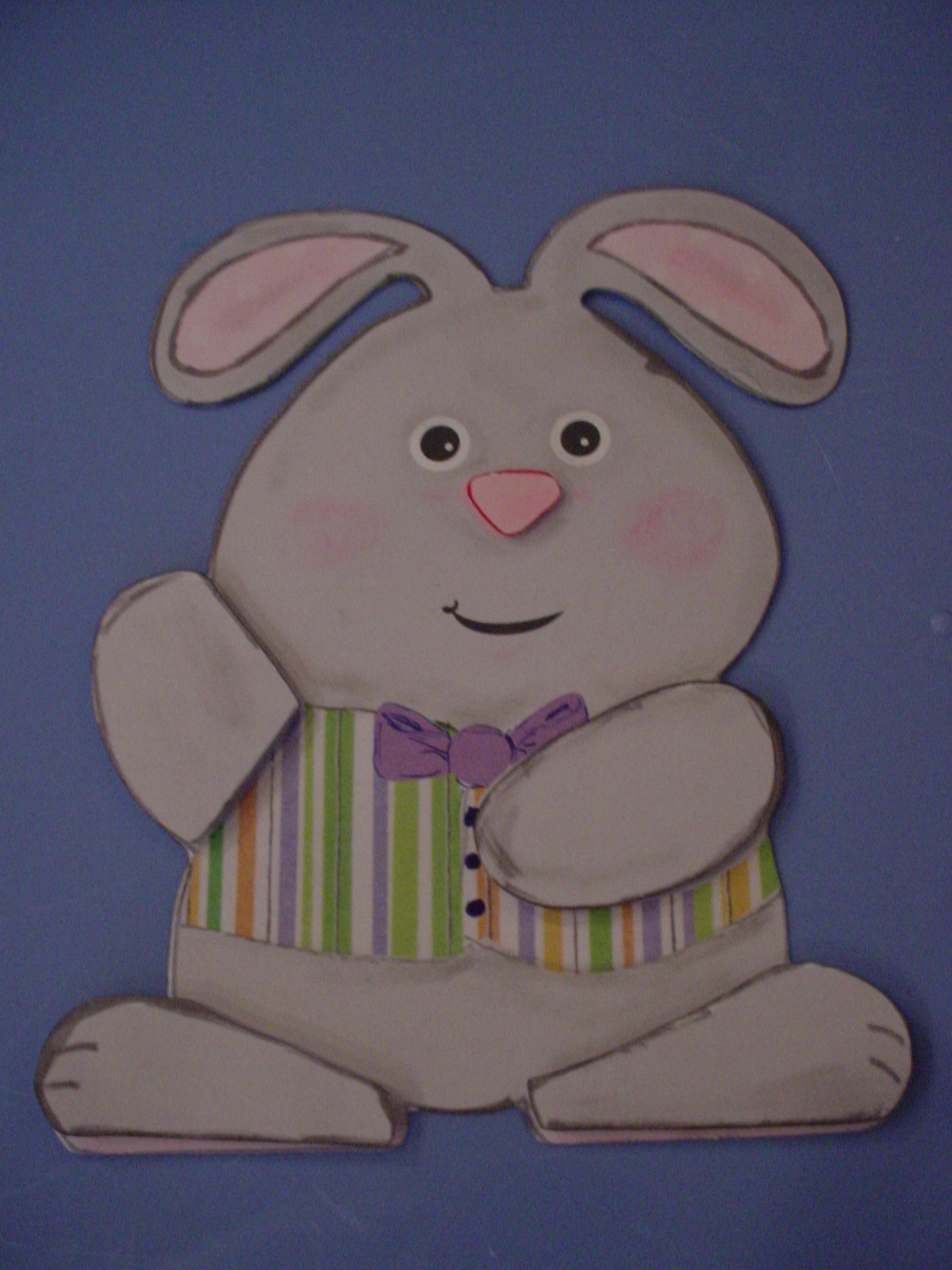
Bunny Card
Continuing on with old posts from my old blog. I needed to show you this one before I share a file I created to be similar to this one tomorrow! This card is from the Spring, 2011, Issue 28 of the Paper Creations magazine. In the magazine, on page 22 there was an article entitled, "Bunny Card" which was designed by Maricel Fabi. It was this really cute Bunny Card for which they provided a pattern pullout to trace and cut by hand. Now, anybody who knows me knows that I HATE to cut with scissors. (I think this is because I am left handed and, when I was little, all scissors were made for right handed people. It wasn't until "modern times" that they made left handed scissors or ones that didn't matter which hand you used! LOL You won't understand what a problem this is UNLESS you are left handed OR you are right handed and have tried to cut using left handed scissors!! LOL) This is what I got my electronic die cut machine and my Make The Cut software for!!!!
| This is the "Print and Cut" Bunny |
Then I thought - well hmmmmmmm. . . . . . . I think he would be really cute if I made him into a "Print and Cut" file - I bet that I could do that really easy. So I created a pink polka dot texture that I added to the "inner ear" parts I had created and a multi-colored striped texture that I added to his vest. I found paper I had in my stash to get these "textures" from and scanned them into my computer and made texture files from them. I then created a "full bow tie" with basic shapes and added a purple color to it. I then made his body gray and added his mouth and his eyes to my MTC file so that they would "print". I then printed the bunny out on my printer (I also added separate feet and hands to "pop" dot to give it some added dimension) and then cut him and the extra pieces with my Cougar (I could also have cut him with my Expression but the Cougar was the one plugged in!). I then used Marker to ink the edges to give it some more dimension and chalked his cheeks. Otherwise, its all printed! IF I had a bigger printer (One that would print 12x12 say) I could have printed him out as a card. Since I just have a regular 8 1/2 x 11 printer I printed just the single bunny. HOWEVER, he could be glued on to the top of a card base. He can also be resized easily.
Since the file I created was from a pattern in a magazine, I can't share it with you here even though I would like to. HOWEVER, I wanted to share all of this information with you to show you what YOU can do with a pattern, your die cut machine, your printer and scanner and Make The Cut software and a little imagination! Just IMAGINE!!! LOL
As always, thanks for stopping by. Please let me know if you have any questions on how I did any of this or if I can help you out with anything. You can checkout the magazine's website here: http://www.papercreationsmag.com/. There you can see some of what is in their current issue, back issues and free projects and ideas. I am not affiliated with the magazine at all but like to give full contact information when I use something from a source. Thanks.
Labels:
bunny,
card,
Make the Cut,
Print and Cut,
Spring,
texture
Wednesday, February 15, 2012
Making my own "skin" for my Kndle Touch using Make the Cut and Printable Vinyl
I had never used this vinyl so I wanted to give it a try. They also sell a clear laminate to put over the top of it to help preserve it. It is tricky to do - tried one really messed it up! LOL So, this one does not have it on there! Probably would be best to use it though if you are using it for something like this. I would apply it before I did the actually cutting.
Once I had the template created, I created new layers to create the "print and cut" elements that I wanted to print on my "skin" (The print and cut elements I used ARE NOT included in my MTC cutting file I am providing below even though they were free images I found by doing a google search online for images of Mickey.) I used MTC's text element to create the text that I put on the front left side using a free "Minnie Font" I have on my computer. I then used "pixel trace" and "texturizing" to pull in the two other picture elements that I wanted to include (the small mickey on the front and the magazine cover on the back). Due to the way that I have my "skin" template laid out on the mat (so that I could get both out of 1 8 1/2 piece of viny) I had to rotate those images outside MTC before I pulled them in so that I could then resize them as needed. If I had not done that, I would not have been able to rotate them inside MTC and also been able to keep and rotate the texture too.
I first cut out a sample template out of plain regular removeable wall vinyl to make sure my template fit. (This is the purple template you see). Once I knew my template worked, I then did the print out of my template with my images with registration marks from Make the Cut and then I used my cutter to "cut it out". I then simply adhered my vinyl skin to my Kindle Touch and I have my own skin I created myself! How cool is that!
Note: Be careful when working with this so that you don't accidentially move any of the elements or accidentially resize them. I do no lock my "layers" on my files but you may want to do so to ensure no accidential resizing or moving while working on your project.
If you have a Kindle Touch and Make the Cut and would like to make your own "skin" for it then you can download my Make the Cut file here: MTC Kindle Touch Template.
For various reasons that I won't get into right now, for now at least, I will only be sharing this template in the Make the Cut format. I may, at a later date decide to share it as an svg file but I am not doing so right now. I hope you will understand. Please feel free to leave me a comment if you are interested in it in that format so I know to reconsider. Also leave me a comment if you have any questions. I did leave some "detailed" notes and photos of my project in the Notes area of MTC.
As always, thanks for stopping by. I hope to see some projects using this skin soon!
Tuesday, February 14, 2012
Happy Valentine's Day - Using Print and Cut and Node Editing in MTC
I found this image over at http://freevintagedigistamps.blogspot.com/2012/01/free-vintage-images-wheel-be-valentines.html and decided to use it for a "print and cut" to make a valentine for my DH who loves to ride bicycles. However, I didn't want the image exactly "as is" in the file so I did a little tweaking inside MTC with the node editing tools to get rid of somethings I didn't want (like the flowers and bottom portion) and to "break" the heart away from being "attached" to the bike riders and to fix it so the 's on "Valentine's Day" would cut out as one word "Valentine's". I then created 2 shadow layers of (one bigger than the last one) that heart to add some depth and dimension to pop it up with and then created anothe heart with 2shadow layers to put the "Happy Valentine's Day" wording on. I used the swiss dots embossing folder on the red background paper.
Here's the image as I got it from freevintagedigistamps' blog (I've got it sorta watermarked since I was posting here but follow link above to get the image without the wording across the middle). If you like vintage stuff she has lots of free files and things on her blog. I recommend that you check it out!
:

And here's the card I made after pulling it into MTC did some node editing, etc. as explained above and then did a "print and cut". On the inside I added, "always".

Thanks for looking. (Can't believe I had DH's valentine's day card done almost a week ahead of time!)
Here's the image as I got it from freevintagedigistamps' blog (I've got it sorta watermarked since I was posting here but follow link above to get the image without the wording across the middle). If you like vintage stuff she has lots of free files and things on her blog. I recommend that you check it out!
:
And here's the card I made after pulling it into MTC did some node editing, etc. as explained above and then did a "print and cut". On the inside I added, "always".
Thanks for looking. (Can't believe I had DH's valentine's day card done almost a week ahead of time!)
Labels:
bicycle,
card,
MTC,
node editing,
Print and Cut,
valentine,
vintage
Tuesday, January 10, 2012
Diaper Card
My friend Margaret asked me to create a Diaper card for her last year. I did and then shared the cut file on my old blog. I recently saw a couple of requests where people were looking for a Diaper Card so I thought I'd share it again here.
I created the base card but wanted to use it to show my friends how easy it is to add a "texture" fill to it in MTC and to basically create your own card with different "textures" or "background images". For example, since this was a "Diaper Card" that you would use for a new baby - you might want to make one for a girl or for a boy - pink or blue - or if the sex is unknown - green, yellow, purple, etc. You could find a "baby print" that you like and "cut it out" of that paper, easy peasy. However, what if I only had the paper in pink and it was for a boy. Or, I couldn't find any baby paper that I liked in my stash. You could create your own "texture" or find one online and use it to fill your image and then cut it out. If I have paper I want to use but its the wrong color, I can scan it in, change the color with a graphics program, and add that as texture to my MTC file before cutting.
The pictures show the base card I originally created and cut out in white cardstock. Then the other pictures show where I scanned in paper I had and made texture files out of them. I then used those texture files to fill the image, print it on my printer, and then cut it out (spot on I might add!) with my MTC software and my Cougar cutter. Notice how the "print" on the diapers is different!
Since I scanned in my "texture" from paper I had, I cannot share those "textures" with you. However, you can create your own very easily. If you need help, in how to do that, check out Nelda's Tutorial she shared regarding "How to Convert Lettering Delights Paper to Seamless Texture for use in MTC". Click here to go to Nelda's Tutorial on her Blog. Scanning your own paper in would work similiarly. You can also create your own textures or backgrounds using a graphics program or google for free textures. Just remember that Andy (creator of MTC recommends texture sizes of around 256x256) so not to bog down your computer and memory.
As always - thanks for stopping by. Feel free to leave a comment if any questions. Would love to see what you do with any of my files. (If I keep asking - maybe you will come back and share! LOL)
Sunday, January 8, 2012
Beach Babe "Print and Cut" Cards
You might have seen this post on my prior blog. If not, be sure to check it out and then check Tyler's site for a great place to order a variety of files as well as supplies for use with your cutter and software of your choice! He sells vinyl, chipboard, metal, plastic, and speciality paper to name just a few! He also provides some great cutting files from a variety of vendors. The best part though is that he has personally tested the materials and cut files he has for sale with his cutter to make sure he is providing a solid and dependable product! How is that for customer service?
I wanted to share two cards I made from some new "Print and Cut" files I found on the "All that Jazz" site by Tyler. They are designed as Print and Cut files for 2 page scrapbook layouts. The files are from "Scrapbook Circus" and can be found on "All that Jazz" (along with a video and a free sample file to try!) Check them all out here:
Scrapbook Cricus Print and Cut Files at All that Jazz.
Well, I'm not a scrapbooker (yet) but I do make cards on occasion so I thought I'd try the "Beach Babes" collection and see if I could take "scrapbooking" files and make cards with them! I was able to make 2 different cards and used a number of the embellishments from the files. The files are available in several formats that should work for almost anyone no matter what cutter and software you use (.mtc, .svg, and .jpeg files).
Here are the two cards I made from the files. I did have to resize them some to fit on "cards." Not too difficult to do with MTC and the new features offered in the new version 4.*. Shift and hold while clicking and dragging to resize outline and texture at the same time for example.
One Card (the blue base) is 5x7 and the other is 4x6. The "mat" on the smaller one is also from the file.
Best thing (besides the cute files) was this project forced me to sit down and actually calibrate my Cougar machine so I could do the Print and Cuts of these files! I have tried a few times but never gotten it nailed down - close but not right on (more a problem with me and my brain - not the fault of the cutter or the software - strictly a user error - My brain fogs when it sees X/Y and +/- numbers I am afraid!). I'm happy to report that with the help of Tyler and Rob (ScrappyDew) and their latest work to continue to find tools to help us use our machines and software, I was finally able to get my machine calibrated!
You can find this latest help file on Tyler's website:
Print and Cut Calibration Help at All that Jazz
I used this and then used MTC's Black Cat Plugin and the Laser option and found great success in doing these Print and Cuts so thanks Tyler and Rob! Please feel free to ask if you have any questions. If you have the ability to do Print and Cuts I would highly recommend checking out these files on Tyler's site and downloading the free "Hammock" file! Thanks for stopping by!
Scrapbook Cricus Print and Cut Files at All that Jazz.
Well, I'm not a scrapbooker (yet) but I do make cards on occasion so I thought I'd try the "Beach Babes" collection and see if I could take "scrapbooking" files and make cards with them! I was able to make 2 different cards and used a number of the embellishments from the files. The files are available in several formats that should work for almost anyone no matter what cutter and software you use (.mtc, .svg, and .jpeg files).
Here are the two cards I made from the files. I did have to resize them some to fit on "cards." Not too difficult to do with MTC and the new features offered in the new version 4.*. Shift and hold while clicking and dragging to resize outline and texture at the same time for example.One Card (the blue base) is 5x7 and the other is 4x6. The "mat" on the smaller one is also from the file.
Best thing (besides the cute files) was this project forced me to sit down and actually calibrate my Cougar machine so I could do the Print and Cuts of these files! I have tried a few times but never gotten it nailed down - close but not right on (more a problem with me and my brain - not the fault of the cutter or the software - strictly a user error - My brain fogs when it sees X/Y and +/- numbers I am afraid!). I'm happy to report that with the help of Tyler and Rob (ScrappyDew) and their latest work to continue to find tools to help us use our machines and software, I was finally able to get my machine calibrated!You can find this latest help file on Tyler's website:
Print and Cut Calibration Help at All that Jazz
I used this and then used MTC's Black Cat Plugin and the Laser option and found great success in doing these Print and Cuts so thanks Tyler and Rob! Please feel free to ask if you have any questions. If you have the ability to do Print and Cuts I would highly recommend checking out these files on Tyler's site and downloading the free "Hammock" file! Thanks for stopping by!
Friday, January 6, 2012
New Features in Make the Cut and a New Lettering Delights Card Using them
Another more recent "repost" from my old blog!
I have actually been doing some crafting and playing with the new features that have recently been added to the Make the Cut software.
Here is a project card that I wanted to share with you. One of the newer features in the Make the Cut software (MTC) is the ability to access Lettering Delights cutting files (LD) directly from within your MTC software! One of LD's more recent files set is called "All Season's Pop-up Cards". Well, there is some "cute" stuff there but the pop-up cards themselves are a little plain and boring without any "color" to them (at least to me!). Here's a picture of what the plain card looks like:
Cute little snowman with a friend and the snowflakes yes? However, what if you could make the snowman and the bird really "pop" off the page - that would be better don't you think? I did! So this is what I made using several of the new features in MTC version 4.0.+!
Now, which card would you rather send out or receive in the mail? I know I'd rather have the "color"!
So now, you probably want to know how I did that! It's actually a lot easier then it's going to sound! I'm not going to give a full tutorial or step by step, nor do I feel that I can share photos or screen shots of the process because the file is a purchased one from Lettering Delights. However, if you are comfortable with MTC and some of its newer features you should be able to follow along with the "concept" as I do my best to "explain" what I did. It would be helpful if you have some basic knowledge of MTC and its newest features in order to fully understand what I have done.
First, you would need to purchase and download one of the Lettering Delight's Popup files like this one or find another one from somewhere else (there are some out there for free as well!). This snowman card came from LD's "All Season's Pop-up Cards" and is "Card 2" in that collection.
Once I had the base card downloaded onto my MTC mat, I created a new page in that same MTC file and copied and pasted in place the card base to the new page to work with that copy. (Simply redownloading to that page would work also.) I kept the first page to cut "as is" for my card base to which to adhere my "Print and Cut" file once it was completed. (Note: This card base is actually the "insert" that you would need to add to the inside of a card base you create.) Now you are ready to "break the file" to create your "Print and Cut".
Select the card base, go to Edit-->--->Shape Magic---->Break
This will break the card into different "parts and pieces". One of the first things I did was to select the snowflakes and snow "dots" all together, and "join" them back together as a group (edit ---> shape magic ----> join) so they are treated as "one" object, take them to their own layer, and then hide that layer so that they are out of the way. (One reason I "join" them back together is so that when I want to work with them, move them around, etc. I only have to click on one and it selects the entire group!)
I then took the other different "parts and pieces" of the snowman to their own layers and colored them. I selected the snowman's eyes and mouth (again, did a "join" so they stay together as one "object") - took them to their own layer ('selection to new layer") and made their color "black" (I took them together because I was coloring both the eyes and mouth black. If I wanted them different colors, I would have take the eyes to one layer and the mouth to its own layer). I then selected the nose, took it to its own layer, and made it orange. Finally, I "joined" the buttons to keep them together, took them to their own layer and colored them red. Once I had all of these objects moved to their own layers and colored as desired, I hid those layers to keep them out of the way while I worked on the remaining parts I needed.
Next I did a little work on the bird. I will be bringing the entire (already) colored bird back in from the Lettering Delight's file a little later (No need to reinvent the wheel!) so I just need to get rid of the bird's eye and wing. There are two ways I could do that. I selected the bird's wing and eye along with the body and "welded" (edit---->shape magic ----> weld) the bird's eye and wing to the base so that those "holes" are gone and it is one solid piece for cutting later. I could also have deleted the wing and the eye from this part of the card but it would have and left the "holes" in the base and these would have still been cut out. The way I did it with the welding, it is one solid piece now.
Now to complete the work, we need to do some "node editing." To do "node editing" you have to be using the newest version of MTC, version 4.0.+. We need to use MTC's new node editing features to get the Snowman recognized as a "whole" snowman and to remove his stick arms from the body and make them into separate parts. Right now he has "pieces" (cut lines) missing from his head and side where he is "attached" to the card base. We want to be able to cut the snowman out on his own and to color his stick arms brown.
Open the Node editing menu in MTC 4.0.+ (found on the left top corner of your MTC mat). Click on the Bezier Curve tool, notice that you can now see the "nodes" blue dots at the end of lines (you may need to zoom in to see better). Left click on the top node on the left top side of the snowman's head, then go down to the bottom left side node and right click on the node there. This will add a line to the snowman and close off the left side of his head. Repeat this on the right side of the Snowman's head. This will make his head "whole" and ready to cut all the way around.
Now, before we do the same thing to the sides of his body, we need to cut off his stick arms and close the finger tips and end of the arms so that we can take them to their own layer and color them brown. Using the knife slicing tool (probably a really good idea to zoom in closer here), go just above the top of the left stick arm where it joins the body, click, hold and drag it down to below where the bottom part of the stick joins the body and then release, this will cut the arm away from the body. It is probably in two pieces, the top and bottom parts of the stick, select both pieces, move them a little way away from the body to help with the node work. (If you don't, you may end up rejoining them to the body accidentially!) Again select the Bezier Curve tool and use it to close the "gap" or "missing line" on his middle finger tip and at the end of the stick (see instructions above on using this tool to close the sides of the head). If done correctly, the "stick" will become whole and change color. Now do the same to the stick arm on the right side. Use the Knife/slicing tool to cut the stick off the body and then use the Bezier Curve tool to close the lines on the finger and at the end of the stick. You know have to "closed" stick arms!
Now use the Bezier Curve tool to close the "gaps" or add the "missing line" to the left and right sides of the snowman's body the same way you did the head and the stick arms. Take the snowman's body to it's own layer and color it "white". Move the stick arms back into place next to the snowman's body, take them to their own layer and color them brown. You will also then need to "copy" and then "paste in place" the snowman's arms onto the same layer with the snowman's body and then "weld" them to the body so that you have the correct shape to "cut" once you have him printed. Welding should make them one piece with the body and make sure it is all still white.
At this point you can open and close layers as needed and use the node editing tools as desired to modify, correct lines as needed (making sure finger tip or head is more "curved" for example).
At this point, it's a good idea to make sure that all the different "layers" or "parts and pieces" are in the correct order for the best print and cut and make sure that they are not closed or hidden if needed for the print and cut.. (For example, the eyes, nose, mouth, and button layers should all be "above" the snowman's body layer so that they are "on top" and showing properly when printing.)
Once that is all done, you can then go back to the Lettering Delight's Files and download the "bird" from the "All Season's Pop-up Cards" collection. Put it on its own layer, place it and size it correctly so that it is sitting on top of the snowman's head as needed. You are now ready to do your printing. (If you are just printing, the different parts and pieces of the bird do not have to be on their own layers since they are already colored differently and stay that way when you bring them in from LD's file.)
Couple of notes regarding printing. First, you need to make sure that you only have the layers showing that you want included in the printing (in this instance, the bird and the snowman along with his eyes, nose, mouth, buttons and arms). Be sure you have closed any other layers not needed for printing. Second, you need to decide if you just want the "fill" only or the "fill and outline" to show when you print and make any changes needed there. On mine, both were showing so I have the lines around his nose, etc. You can also use the "print preview" to see what is going to print. Since the snowman himself is "white" with no outline showing, you won't see his body since "white" does not show on print preview. (If you feel the need to verify that he's really there you can change his body to another color besides white before doing the preview - just remember to change it back to white if you want a white snowman!)
To print a file for a "Print and Cut" - first make sure that you have checked your printing options needed from within the MTC software. Go to File ---->print options and select or deselect options as needed. For example you will need to make sure that "print registration marks are checked" but the "use silhouette sd" is marked only if you are using that cutter. Decide on printer outlines or not, etc. Once done, click ok and print.
Once you have your printed page, follow the proper method needed to do a "print and cut" for your cutter of choice. I have both a Silhouette SD and an 18" Cougar machine so how I do a print and cut with each of those machines varies. (Note: If you have never done a 'print and cut" with your cutter before, you may need to first calibrate your machine before doing a "print and cut" to ensure your cutting is aligned properly with your image.)
One important step to remember at this point is to CLOSE any and all LAYERS that you DO NOT WANT TO CUT! For example, we only want to cut the "outline" of the snowman with the bird on his head so that is the only layer we would have showing. We would close the colored bird, along with the snowman's eyes, nose, mouth, buttons, and arms along with the card base. (If we forget to close those layers, they will "cut" and you will not have an orange nose, red buttons, etc!)
Once you have your "print and cut" printed and cut out, you are ready to adhere it to your inside "pop-up base". Cut out the original "card base" from the Lettering Delights file. Adhere your "print and cut" to the Snowman and then apply the entire base to a base card being careful not to adhere the parts of the snowman that "pop-up". (Note: I always remove or hide the layer with the scored/fold lines because I don't like the little "slits" it puts in the card. This is a personal preference.)
Now you have a cute "colored" pop-up to send out to your family and friends!
Couple of other quick notes, if you want to vary the card size, you need to put the card base on the same page on its own layer - have ALL layers showing, "select all" and resize so that you resize all together and in proportion!You can also now use this file to "paper piece" the snowman if desired as well. You would just cut out the different parts and pieces as needed. This would be great or adding a little "dimension" to a project. You could also use the "print and cut" as a stand alone object (like on the front of the card) and can resize him as needed, etc. Use your imagination and have fun!
Thanks for stopping by! I hope my basic "instructions" are helpful to you in making other simple files have a little more "pop". Please feel free to leave a message should you have any questions or comments. I tried to make sure I covered all the steps but I may have missed something or not explained it well enough!
I have actually been doing some crafting and playing with the new features that have recently been added to the Make the Cut software.
Here is a project card that I wanted to share with you. One of the newer features in the Make the Cut software (MTC) is the ability to access Lettering Delights cutting files (LD) directly from within your MTC software! One of LD's more recent files set is called "All Season's Pop-up Cards". Well, there is some "cute" stuff there but the pop-up cards themselves are a little plain and boring without any "color" to them (at least to me!). Here's a picture of what the plain card looks like:
Now, which card would you rather send out or receive in the mail? I know I'd rather have the "color"!
So now, you probably want to know how I did that! It's actually a lot easier then it's going to sound! I'm not going to give a full tutorial or step by step, nor do I feel that I can share photos or screen shots of the process because the file is a purchased one from Lettering Delights. However, if you are comfortable with MTC and some of its newer features you should be able to follow along with the "concept" as I do my best to "explain" what I did. It would be helpful if you have some basic knowledge of MTC and its newest features in order to fully understand what I have done.
First, you would need to purchase and download one of the Lettering Delight's Popup files like this one or find another one from somewhere else (there are some out there for free as well!). This snowman card came from LD's "All Season's Pop-up Cards" and is "Card 2" in that collection.
Once I had the base card downloaded onto my MTC mat, I created a new page in that same MTC file and copied and pasted in place the card base to the new page to work with that copy. (Simply redownloading to that page would work also.) I kept the first page to cut "as is" for my card base to which to adhere my "Print and Cut" file once it was completed. (Note: This card base is actually the "insert" that you would need to add to the inside of a card base you create.) Now you are ready to "break the file" to create your "Print and Cut".
Select the card base, go to Edit-->--->Shape Magic---->Break
This will break the card into different "parts and pieces". One of the first things I did was to select the snowflakes and snow "dots" all together, and "join" them back together as a group (edit ---> shape magic ----> join) so they are treated as "one" object, take them to their own layer, and then hide that layer so that they are out of the way. (One reason I "join" them back together is so that when I want to work with them, move them around, etc. I only have to click on one and it selects the entire group!)
I then took the other different "parts and pieces" of the snowman to their own layers and colored them. I selected the snowman's eyes and mouth (again, did a "join" so they stay together as one "object") - took them to their own layer ('selection to new layer") and made their color "black" (I took them together because I was coloring both the eyes and mouth black. If I wanted them different colors, I would have take the eyes to one layer and the mouth to its own layer). I then selected the nose, took it to its own layer, and made it orange. Finally, I "joined" the buttons to keep them together, took them to their own layer and colored them red. Once I had all of these objects moved to their own layers and colored as desired, I hid those layers to keep them out of the way while I worked on the remaining parts I needed.
Next I did a little work on the bird. I will be bringing the entire (already) colored bird back in from the Lettering Delight's file a little later (No need to reinvent the wheel!) so I just need to get rid of the bird's eye and wing. There are two ways I could do that. I selected the bird's wing and eye along with the body and "welded" (edit---->shape magic ----> weld) the bird's eye and wing to the base so that those "holes" are gone and it is one solid piece for cutting later. I could also have deleted the wing and the eye from this part of the card but it would have and left the "holes" in the base and these would have still been cut out. The way I did it with the welding, it is one solid piece now.
Now to complete the work, we need to do some "node editing." To do "node editing" you have to be using the newest version of MTC, version 4.0.+. We need to use MTC's new node editing features to get the Snowman recognized as a "whole" snowman and to remove his stick arms from the body and make them into separate parts. Right now he has "pieces" (cut lines) missing from his head and side where he is "attached" to the card base. We want to be able to cut the snowman out on his own and to color his stick arms brown.
Open the Node editing menu in MTC 4.0.+ (found on the left top corner of your MTC mat). Click on the Bezier Curve tool, notice that you can now see the "nodes" blue dots at the end of lines (you may need to zoom in to see better). Left click on the top node on the left top side of the snowman's head, then go down to the bottom left side node and right click on the node there. This will add a line to the snowman and close off the left side of his head. Repeat this on the right side of the Snowman's head. This will make his head "whole" and ready to cut all the way around.
Now, before we do the same thing to the sides of his body, we need to cut off his stick arms and close the finger tips and end of the arms so that we can take them to their own layer and color them brown. Using the knife slicing tool (probably a really good idea to zoom in closer here), go just above the top of the left stick arm where it joins the body, click, hold and drag it down to below where the bottom part of the stick joins the body and then release, this will cut the arm away from the body. It is probably in two pieces, the top and bottom parts of the stick, select both pieces, move them a little way away from the body to help with the node work. (If you don't, you may end up rejoining them to the body accidentially!) Again select the Bezier Curve tool and use it to close the "gap" or "missing line" on his middle finger tip and at the end of the stick (see instructions above on using this tool to close the sides of the head). If done correctly, the "stick" will become whole and change color. Now do the same to the stick arm on the right side. Use the Knife/slicing tool to cut the stick off the body and then use the Bezier Curve tool to close the lines on the finger and at the end of the stick. You know have to "closed" stick arms!
Now use the Bezier Curve tool to close the "gaps" or add the "missing line" to the left and right sides of the snowman's body the same way you did the head and the stick arms. Take the snowman's body to it's own layer and color it "white". Move the stick arms back into place next to the snowman's body, take them to their own layer and color them brown. You will also then need to "copy" and then "paste in place" the snowman's arms onto the same layer with the snowman's body and then "weld" them to the body so that you have the correct shape to "cut" once you have him printed. Welding should make them one piece with the body and make sure it is all still white.
At this point you can open and close layers as needed and use the node editing tools as desired to modify, correct lines as needed (making sure finger tip or head is more "curved" for example).
At this point, it's a good idea to make sure that all the different "layers" or "parts and pieces" are in the correct order for the best print and cut and make sure that they are not closed or hidden if needed for the print and cut.. (For example, the eyes, nose, mouth, and button layers should all be "above" the snowman's body layer so that they are "on top" and showing properly when printing.)
Once that is all done, you can then go back to the Lettering Delight's Files and download the "bird" from the "All Season's Pop-up Cards" collection. Put it on its own layer, place it and size it correctly so that it is sitting on top of the snowman's head as needed. You are now ready to do your printing. (If you are just printing, the different parts and pieces of the bird do not have to be on their own layers since they are already colored differently and stay that way when you bring them in from LD's file.)
Couple of notes regarding printing. First, you need to make sure that you only have the layers showing that you want included in the printing (in this instance, the bird and the snowman along with his eyes, nose, mouth, buttons and arms). Be sure you have closed any other layers not needed for printing. Second, you need to decide if you just want the "fill" only or the "fill and outline" to show when you print and make any changes needed there. On mine, both were showing so I have the lines around his nose, etc. You can also use the "print preview" to see what is going to print. Since the snowman himself is "white" with no outline showing, you won't see his body since "white" does not show on print preview. (If you feel the need to verify that he's really there you can change his body to another color besides white before doing the preview - just remember to change it back to white if you want a white snowman!)
To print a file for a "Print and Cut" - first make sure that you have checked your printing options needed from within the MTC software. Go to File ---->print options and select or deselect options as needed. For example you will need to make sure that "print registration marks are checked" but the "use silhouette sd" is marked only if you are using that cutter. Decide on printer outlines or not, etc. Once done, click ok and print.
Once you have your printed page, follow the proper method needed to do a "print and cut" for your cutter of choice. I have both a Silhouette SD and an 18" Cougar machine so how I do a print and cut with each of those machines varies. (Note: If you have never done a 'print and cut" with your cutter before, you may need to first calibrate your machine before doing a "print and cut" to ensure your cutting is aligned properly with your image.)
One important step to remember at this point is to CLOSE any and all LAYERS that you DO NOT WANT TO CUT! For example, we only want to cut the "outline" of the snowman with the bird on his head so that is the only layer we would have showing. We would close the colored bird, along with the snowman's eyes, nose, mouth, buttons, and arms along with the card base. (If we forget to close those layers, they will "cut" and you will not have an orange nose, red buttons, etc!)
Once you have your "print and cut" printed and cut out, you are ready to adhere it to your inside "pop-up base". Cut out the original "card base" from the Lettering Delights file. Adhere your "print and cut" to the Snowman and then apply the entire base to a base card being careful not to adhere the parts of the snowman that "pop-up". (Note: I always remove or hide the layer with the scored/fold lines because I don't like the little "slits" it puts in the card. This is a personal preference.)
Now you have a cute "colored" pop-up to send out to your family and friends!
Couple of other quick notes, if you want to vary the card size, you need to put the card base on the same page on its own layer - have ALL layers showing, "select all" and resize so that you resize all together and in proportion!You can also now use this file to "paper piece" the snowman if desired as well. You would just cut out the different parts and pieces as needed. This would be great or adding a little "dimension" to a project. You could also use the "print and cut" as a stand alone object (like on the front of the card) and can resize him as needed, etc. Use your imagination and have fun!
Thanks for stopping by! I hope my basic "instructions" are helpful to you in making other simple files have a little more "pop". Please feel free to leave a message should you have any questions or comments. I tried to make sure I covered all the steps but I may have missed something or not explained it well enough!
Tuesday, January 3, 2012
Everything's Better with Friends! Card using Print and Cut with MTC
Hello. Thanks for stopping by. I'm going to be trying to add some "new" stuff as I continue to also bring over some of my "older" stuff from my old blog. So some days you will see multiple posts (I hope!) This is one of those days! No file to share (just a site to get it from) but some ideas as to how to make them your "own".
Our weather finally turned to winter weather (well winter COLD weather - no snow!) the past couple of days which made me think of some cute snowmen files I purchased from Scrappydew.com's website back in November. I used one of the snowmen from Scrappy's Snowman Set II found in the Christmas Palz I collection. You get 3 different snowmen with all their parts and pieces for a whopping $1.99 (US funds). PLUS, you get them in a variety of different formats too! (This particular set comes in MTC-SVG-PDF-DXF formats). This card is only using 1 snowman from that set. (I hope to use some more soon!)
Well, I wanted to make a card BUT I didn't want to do a lot of paper piecing right then. So I figured I would do the snowman as a "print and cut" instead of paper piecing him together.
Our weather finally turned to winter weather (well winter COLD weather - no snow!) the past couple of days which made me think of some cute snowmen files I purchased from Scrappydew.com's website back in November. I used one of the snowmen from Scrappy's Snowman Set II found in the Christmas Palz I collection. You get 3 different snowmen with all their parts and pieces for a whopping $1.99 (US funds). PLUS, you get them in a variety of different formats too! (This particular set comes in MTC-SVG-PDF-DXF formats). This card is only using 1 snowman from that set. (I hope to use some more soon!)
Well, I wanted to make a card BUT I didn't want to do a lot of paper piecing right then. So I figured I would do the snowman as a "print and cut" instead of paper piecing him together.
Now, one of the neat things about ScrappyDew's MTC files is that they make it really easy to use the files as either paper piecings or as a "print and cut" as they have all the "pieces" layed out on their own layers PLUS they have a "cut layer" or "shadow layer" already made and ready for making one cut just around the outside edge of the image!
But, if you look carefully at the snowmen on my card you will notice that the snowmen all have different color scarves and hat bands AND the snowman in the middle has his scarf and hat going the opposite direction from the other two snowmen! The first snowman, the one with the blue scarf and hat, is the original snowman as received from ScrappyDew (reduced in size though to fit 3 on the card front). However, I thought I'd like to make each snowmen have different colors hats and scarves. Make the Cut (MTC) makes that really easy to do. I simply selected the items that I wanted to change the color on and changed it to a new color! (There are several ways to do this - you can change on the layer, you can do ctrl, shift, U and it will take you to the color selection area or you can select the item so that it has the selection box around it, then right click and go to the change, color, texture, line and go to change color.) I coud have also added a "texture" (like a stripe or star pattern) if I wanted and had them on my computer (say from a Lettering Delights texture file!) or wanted to take the time to create them. This would be done by going to the change -->texture choice.
Now, the other thing you should notice is that the scarf and hat on the snowman in the middle is also going in the opposite direction then those on the other two snowman! His scarf is blowing to the left while the other two's are going to the right. His hat is leaning towards the right while the other two's are leaning to the left. This is also very simple to do in MTC! I simply selected all the layers of that snowman, right clicked, Shape Magic and mirrored him. Quite easy! The reason I selected all of his layers is because I was doing a print and cut and wanted to make sure that all the parts flipped and matched up including the solid outline for cutting purposes. If I had been doing a paper piecing, I could have just mirrored the hat and scarf themselves if I was not using the outline piece as a base to piece it all on. YOU can decided to do what ever works for you - there is no limits or being locked into what someone else "envisioned"!
Now, I'm trying to decide how to finish off this card. Can't decide if I want to add any wording to the front or leave it as is and just put inside the card. Thinking about "Warm Winter Wishes", "Good Friends are often Flakes", Some of my Best Friends are Flakes", or "Let it Snow, Let it Snow, Let it Snow". Anybody got any good ideas?
The background is a stamp from Hero Arts that I got on sale before the holidays at Michael's. It's title is "Stunning Snowflakes". I used a Tsukineko Brillance Moonlight White inkpad to stamp it with. I used some Martha Stewart fine crystal white glitter on the snowmounds (doesn't show up well in the picture) and some minor inking/doodling on the snowmen. I then pop dotted the two front snowmen.
Thanks for stopping by. I hope this helps you to see how you can take those purchased and/or free files that you have and make them your "own" simply by changing their colors and/or direction! Please feel free to leave me a comment below. Be sure to stop by ScrappyDew's to find lots of winter friends to work with. I hope to show you some more of them soon as I bought quite a few back in November and one of my New Year's resolution was to start using some of those files and ideas I have laying around!
Subscribe to:
Posts (Atom)